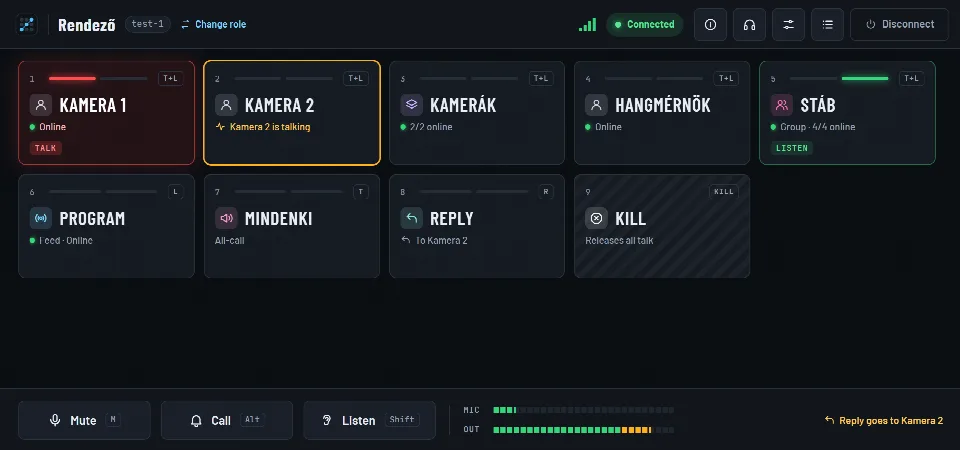
The panel

One key talks. You see the rest.

The panel is the role’s keys: each shows its target’s name, presence and state. A short tap keeps a key on; held, it talks only while held. When someone talks to you, their key lights amber.

The director’s panel: talk, tally and listen

Sound familiar?

  • “Who’s talking to me? I can hear them, but which key do I answer on?
  • “A key stayed on, and half the crew heard what was meant for the director.
  • “We need one more position, but there are no more hardware panels.

01

Tap or hold

One key works two ways: a press shorter than 300 ms latches, a longer one talks only while held. The bars on top show talk (red) and listen (green); the corner shows what the key may do: T, L or T+L.

  • Left click talks, right click listens
  • Group, multi-target and all-call keys
  • The keys never move
The director’s panel: talking to and listening to Camera 1, Camera 2 talking to the director, the Crew group being listened to.

02

Tally, call and Reply

When someone talks to you, their key shows an amber frame and their name. Call signals with a sound, a banner and a flashing key, even when the other side isn’t paying attention. Reply always answers whoever talked to you last.

  • A call banner on the top bar
  • The call sound repeats every 15 seconds
  • Reply: answer without searching
An incoming call on the panel: a banner on the top bar and a flashing key

03

On phones and tablets

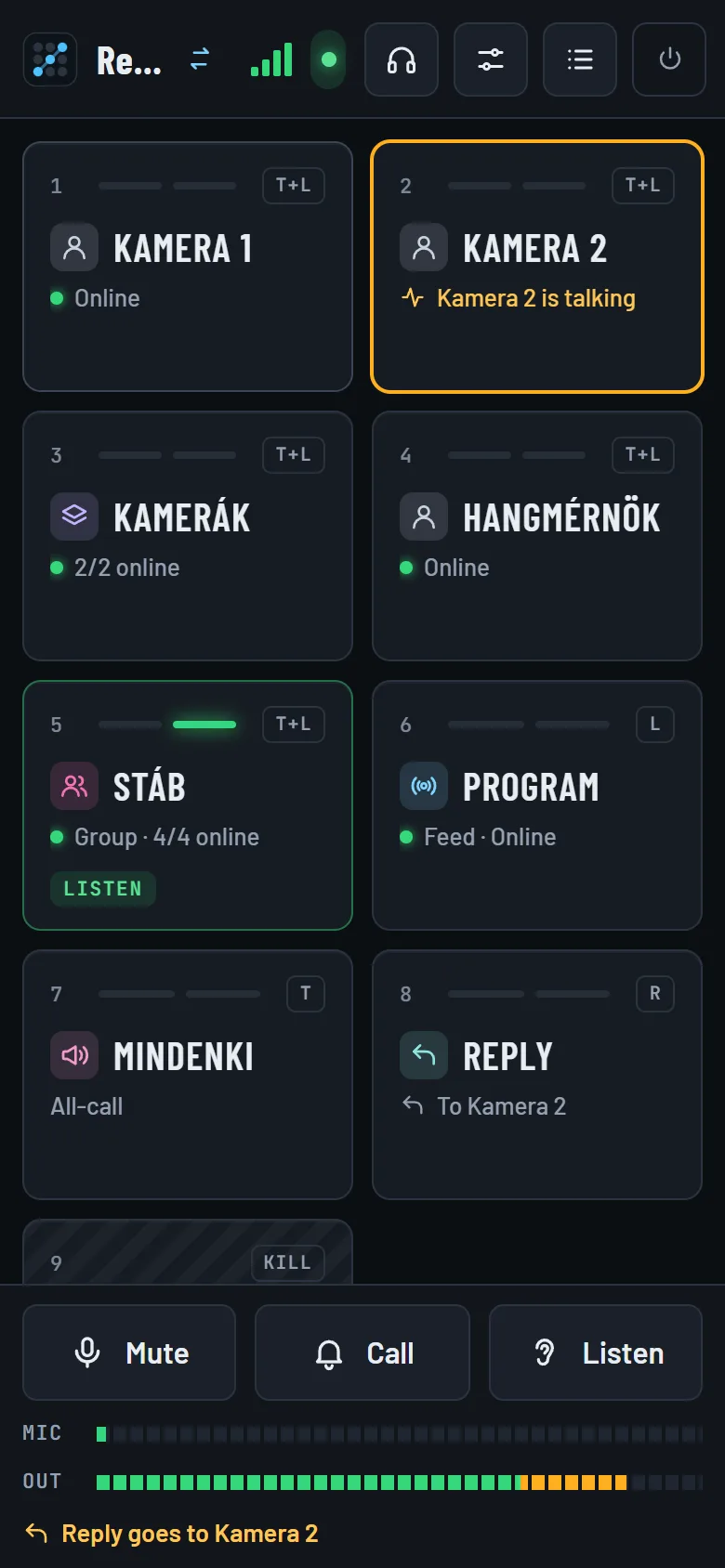
The same panel on a small screen: the keys scroll, and the bottom bar with Mute, Call and Listen is always at hand. Put it on the home screen; the screen stays on while connected, and a call vibrates.

  • Presses tuned for touch
  • The top bar always in view
  • A PIN per role
The BroadTalk panel on a phone

04

Volume for your own ears

The Volumes panel holds the master volume, a volume per key and the sidetone – your own voice in your headphones, locally, without delay. Audio devices picks the microphone and the output.

  • A volume per key
  • Sidetone −40…0 dB
  • Level and connection meters on the panel
The Volumes panel: master volume, sidetone and a volume per key
  • Mute

    One key mutes the microphone on every path; the keys keep their state meanwhile.

  • Kill

    Releases every talk key left on at once, from a panel or the admin.

  • Keyboard

    1–9 and 0 for the keys, Shift to listen, Alt to call, M to mute.

  • Connection meter

    Four bars show the connection’s quality; after a drop the panel reconnects by itself.

Step by step

The first minute on the panel

  1. 1Open the address in the browser
  2. 2Pick your role
  3. 3Enter the PIN if there is one
  4. 4Connect: the browser asks for the microphone once
  5. 5Press a key and talk

The keys never move.

No message, call or late web font ever shifts a key: what is under your finger stays there. A press landing in the wrong place would call the wrong person – an automated test checks this on every change.

What the panel does

  • Talk
  • Listen
  • Tally
  • Call
  • Reply
  • Mute
  • Kill
  • All-call
  • Party line group
  • Multi-target key
  • Sidetone
  • PIN
  • ON AIR

Frequently asked questions

What is the difference between T, L and T+L keys?

It is what the key may do: T can only talk, L can only listen, T+L can do both. Left click (or a tap) always talks, right click (on touch screens Listen, then the key) always listens. Whatever a key may not do, the server refuses too.

What happens if the network drops?

On a short drop the latched keys are kept for 10 seconds and the panel reconnects by itself. If it isn’t back by then, everything is released and logged. A key held down is released at once.

Can it be used with a speaker, without headphones?

Yes: the Speaker profile turns on the browser’s echo and noise suppression. If it still echoes, playback can dip while the role talks (Ducking while talking). With headphones (the Headset profile) the sound is cleanest.

  • Setup and monitoring

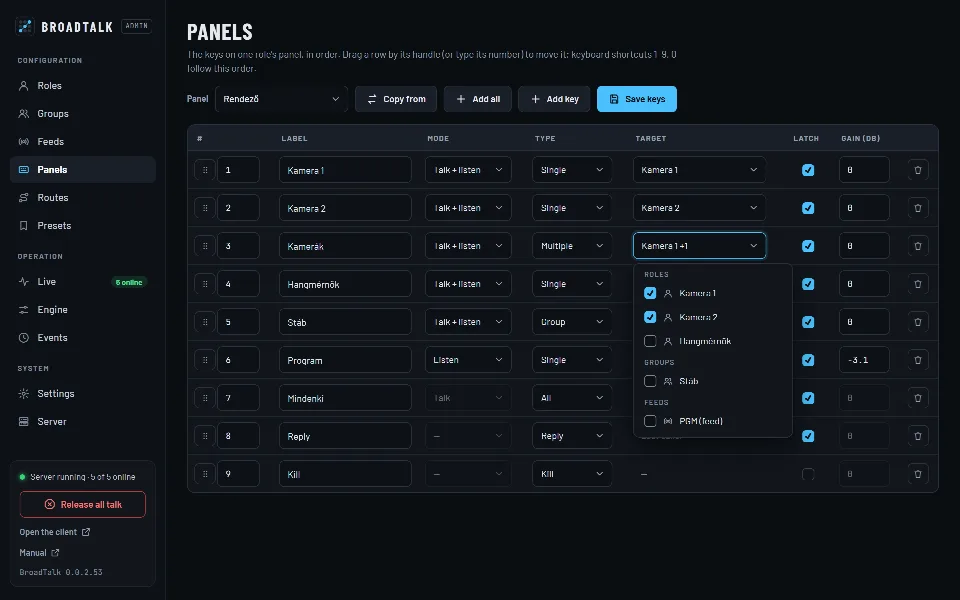
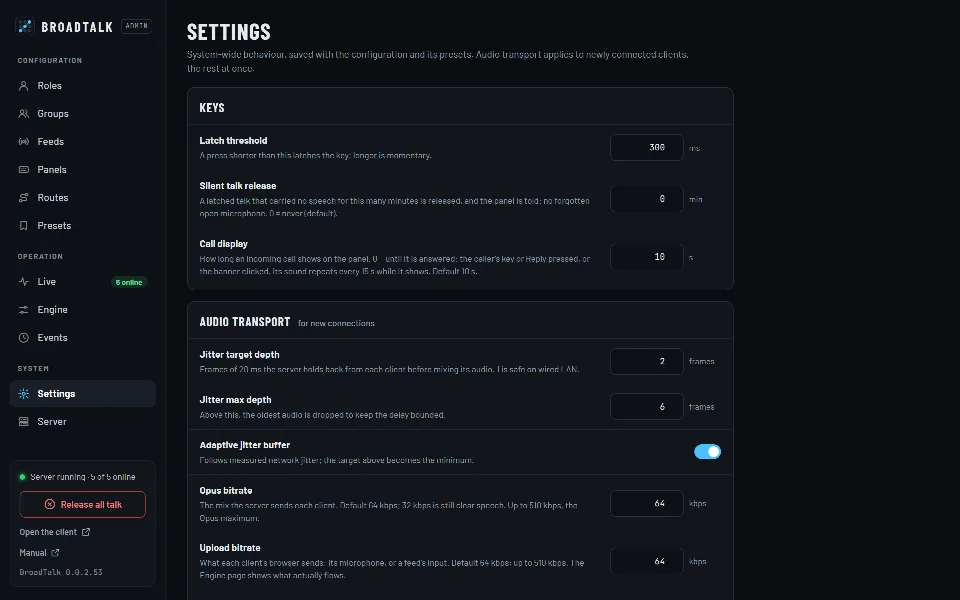
    Roles, groups, keys, fixed routes and presets in a password-protected admin. Every change applies at once.

  • Audio

    Program feeds, priority and ducking, input gain, noise gate and an adaptive jitter buffer – all adjustable.

A headset on a microphone stand in the studio at night

Contact

Let’s talk.

Questions, a demo, or a trial in your own studio? Write or call, and we’ll show you how BroadTalk fits the way you work.