Setup and monitoring

Rearrange the crew. During the show.

In the password-protected admin every change applies at once, without a restart: a new role, a new key, a new group. Meanwhile the Live view shows who is online, who talks to whom and who listens to whom.

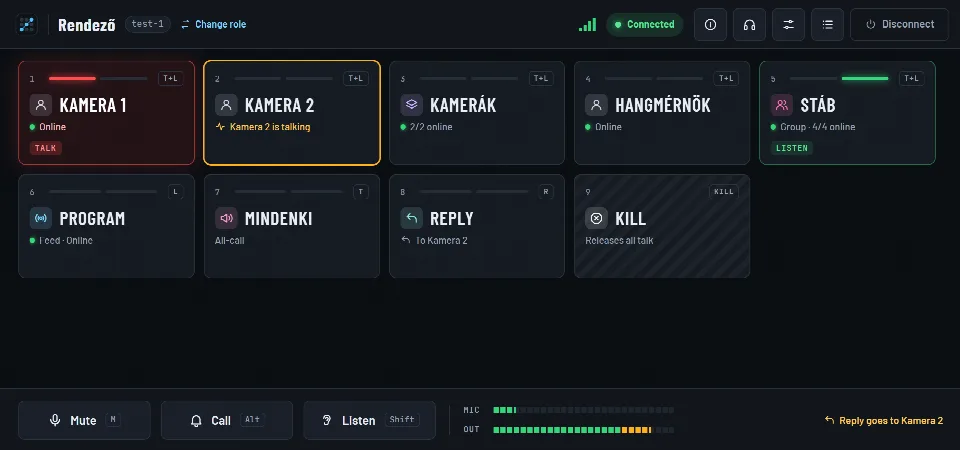
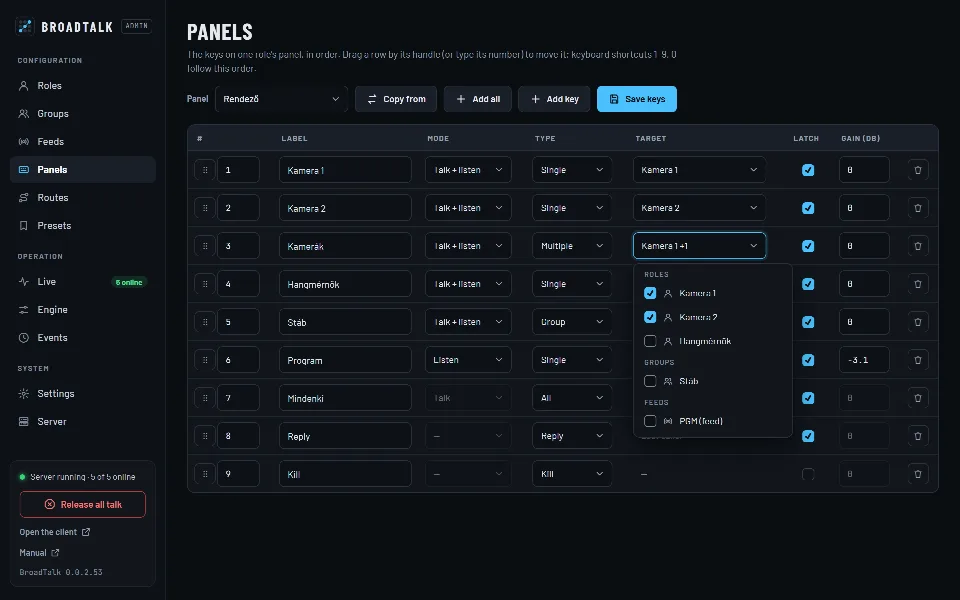
The Panels page: the director’s keys

Sound familiar?

  • “One new camera operator means reconfiguring half the system.
  • “I have no idea who is hearing the director right now.
  • “Before every show we set the keys back by hand.

01

Roles and groups

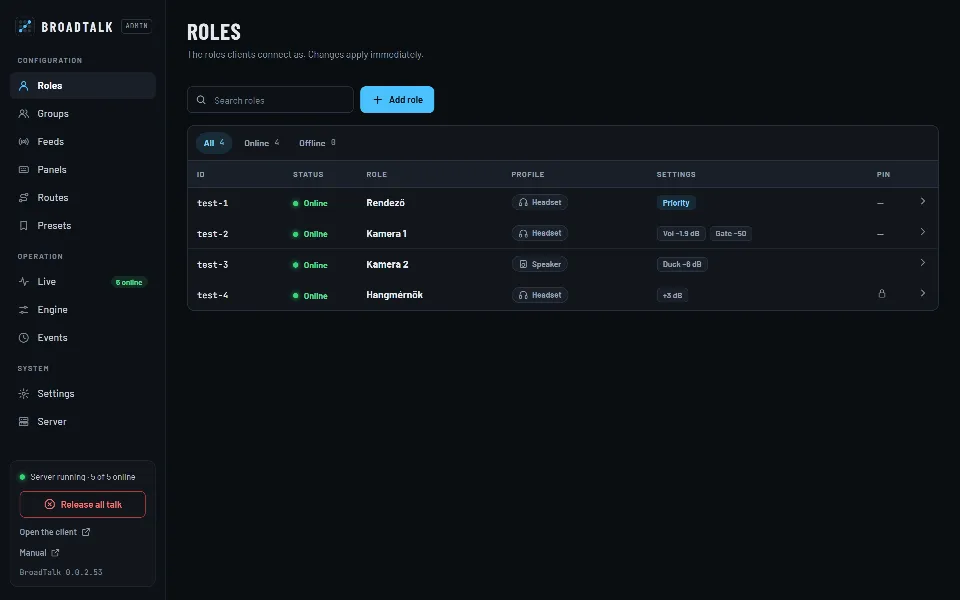
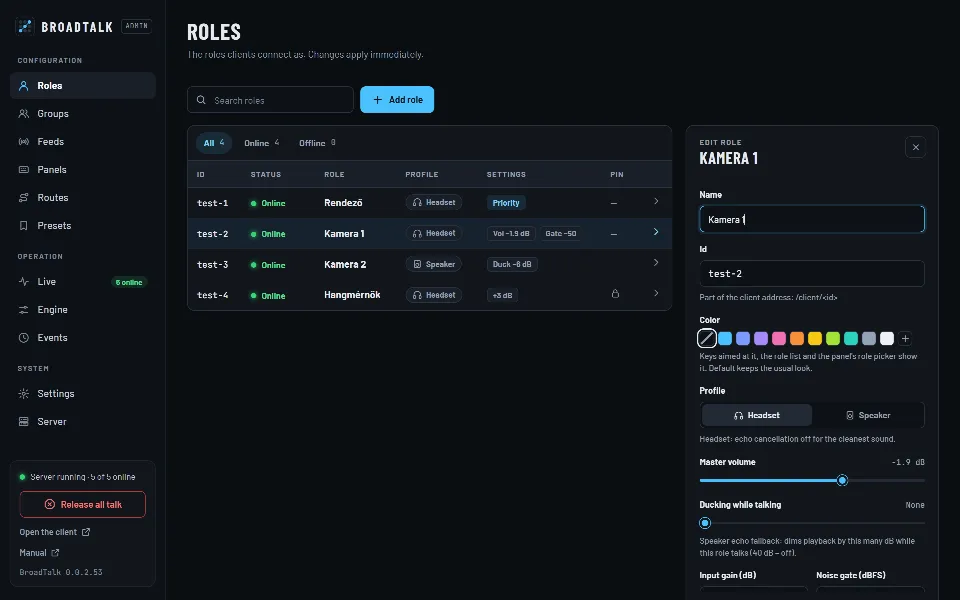
A role is a position – Director, Camera 1 – with its own audio profile, volume, PIN and color. A group (party line) is a shared line: whoever talks into it is heard by its members; per member you choose whether they listen by default.

  • Rename: every reference follows
  • Colors on the keys and in the lists
  • Headset or speaker profile
The list of roles in the admin
A role’s editor: color, profile, volume, ducking, gain and noise gate

02

A live crosspoint matrix

On the Live page talkers are columns and listeners rows. Open paths, signal, priority, fixed routes and feeds are all marked, and one click closes an open path – just as the panel would.

  • Updates twice a second
  • Nothing jumps: everyone keeps their place
  • Connection quality per role
The live crosspoint matrix: talkers in columns, listeners in rows

03

Presets: one click and the show is ready

The whole setup – roles, groups, keys, routes and system settings – saves under a name and loads back any time. News, sport, concert: each gets its own.

  • Save, overwrite, load
  • Loadable over HTTP, OSC and from a Stream Deck
  • Leaves the machine’s own settings alone
The Presets page with two saved setups

04

Event log

Who talked to whom, who called, who connected and when – it all goes into the log, and into daily files. If the audio engine slips, that is written here too, in plain words.

  • Filter by name, text or category
  • Daily files on the server
  • Audio engine health on the Engine page
The event log: talk and connections in time order
  • Fixed routes

    An always-open path without a key: the sound engineer always hears the director, for example.

  • Copy from and Add all

    A panel can take another’s keys with the roles swapped, and Add all fills one in a single click.

  • Colors

    Roles, feeds and groups get their own color on key icons, the role picker and the lists.

  • Live at once

    Every save is live immediately; connected panels follow without a restart.

Step by step

Setting up a new show

  1. 1Add the roles
  2. 2Groups for the party lines
  3. 3A feed for the program
  4. 4Keys on the Panels page
  5. 5Fixed routes
  6. 6Save as a preset

Every change is live at once.

There is no “apply and restart”: the server takes a new role, key or route on the fly, and the panels show it at once. What only applies to new connections – the bitrate, for example – the admin points out.

The admin’s pages

  • Roles
  • Groups
  • Feeds
  • Panels
  • Routes
  • Presets
  • Live
  • Engine
  • Events
  • Settings
  • Server

Frequently asked questions

Who can open the admin?

Whoever has the admin password. From the internet it must be at least 12 characters, and after ten failed tries that address is locked out for 15 minutes. External controllers use their own API tokens, not the password.

Is anything lost if I change things during a show?

No. The change applies at once and the panels follow. A key’s state (talk on, listening) stays with the key; if you change or remove a key, its talk is released.

What does a preset save?

The whole configuration: roles, groups, feeds, keys, fixed routes and the system settings of the Settings page. The machine’s own settings (ports, certificate, password, tokens) are not part of it.

  • The panel

    Talk on a tap or while held, listen, tally, call, Reply and Kill – on big, legible keys, on a phone too.

  • External control

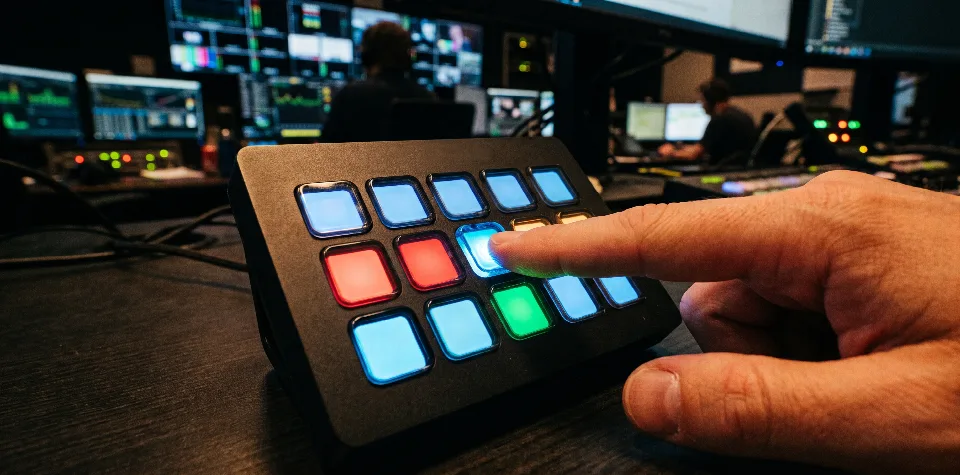
    A Stream Deck plugin, an HTTP API with tokens and OSC: press keys, mute, call, load presets, set ON AIR.

A headset on a microphone stand in the studio at night

Contact

Let’s talk.

Questions, a demo, or a trial in your own studio? Write or call, and we’ll show you how BroadTalk fits the way you work.